Spotify Integration
Connect your Spotify account to Diva Music to unlock listening activity features and personalized music experience.
Prerequisites
Before you begin
Make sure you have the following ready before starting:
- You are logged in to your Spotify account in your browser.
- You are logged in to the Diva Music dashboard at divabot.xyz/dashboard/profile.
Connecting Spotify to Diva Music
Open Discord User Settings
Click the gear icon (⚙️) next to your username in the bottom-left corner of Discord to open User Settings.

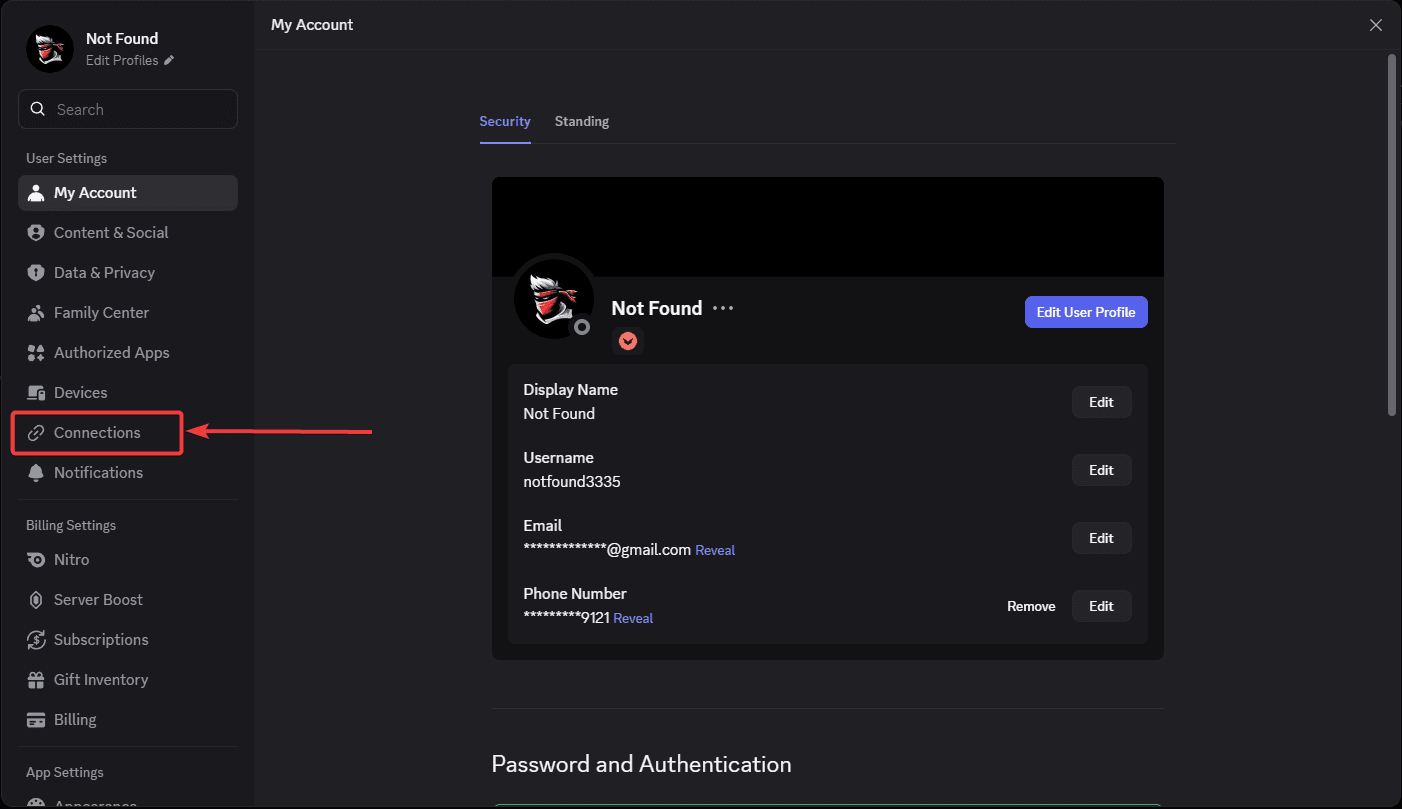
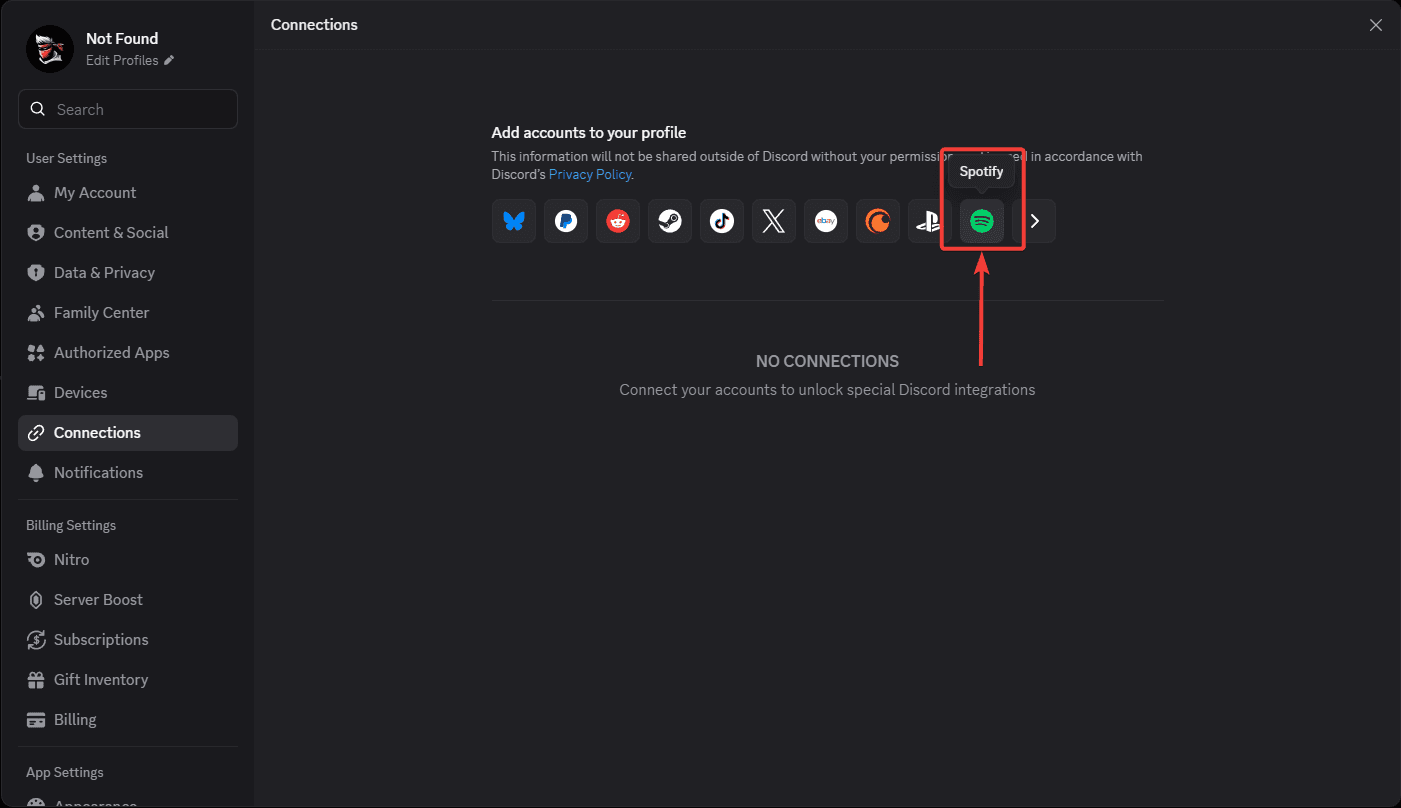
Select Spotify
In the Connections page, find and click the Spotify icon from the list of available services.
Authorize the Connection
A Spotify authorization window will open in your browser. Review the permissions and click Agree to link your Spotify account to Discord.
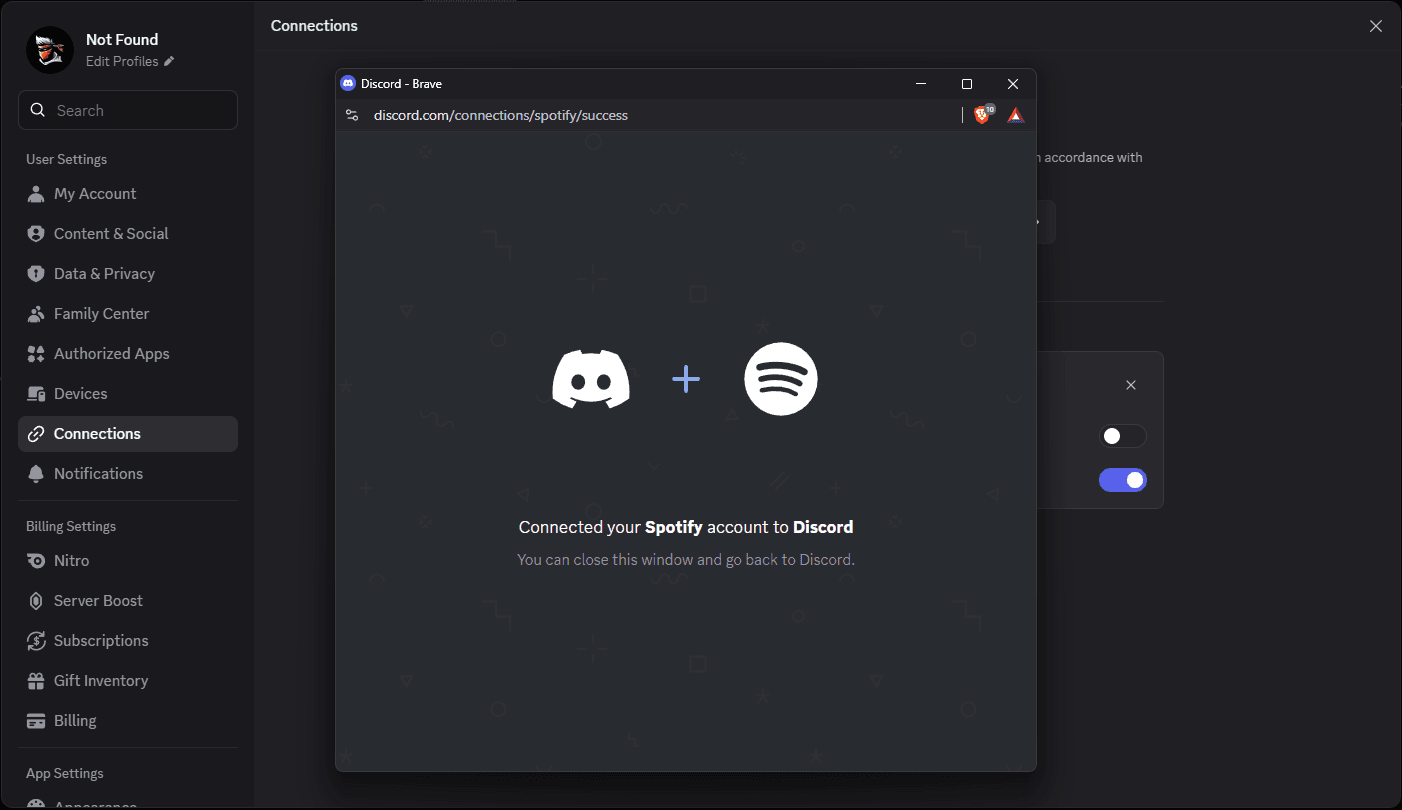
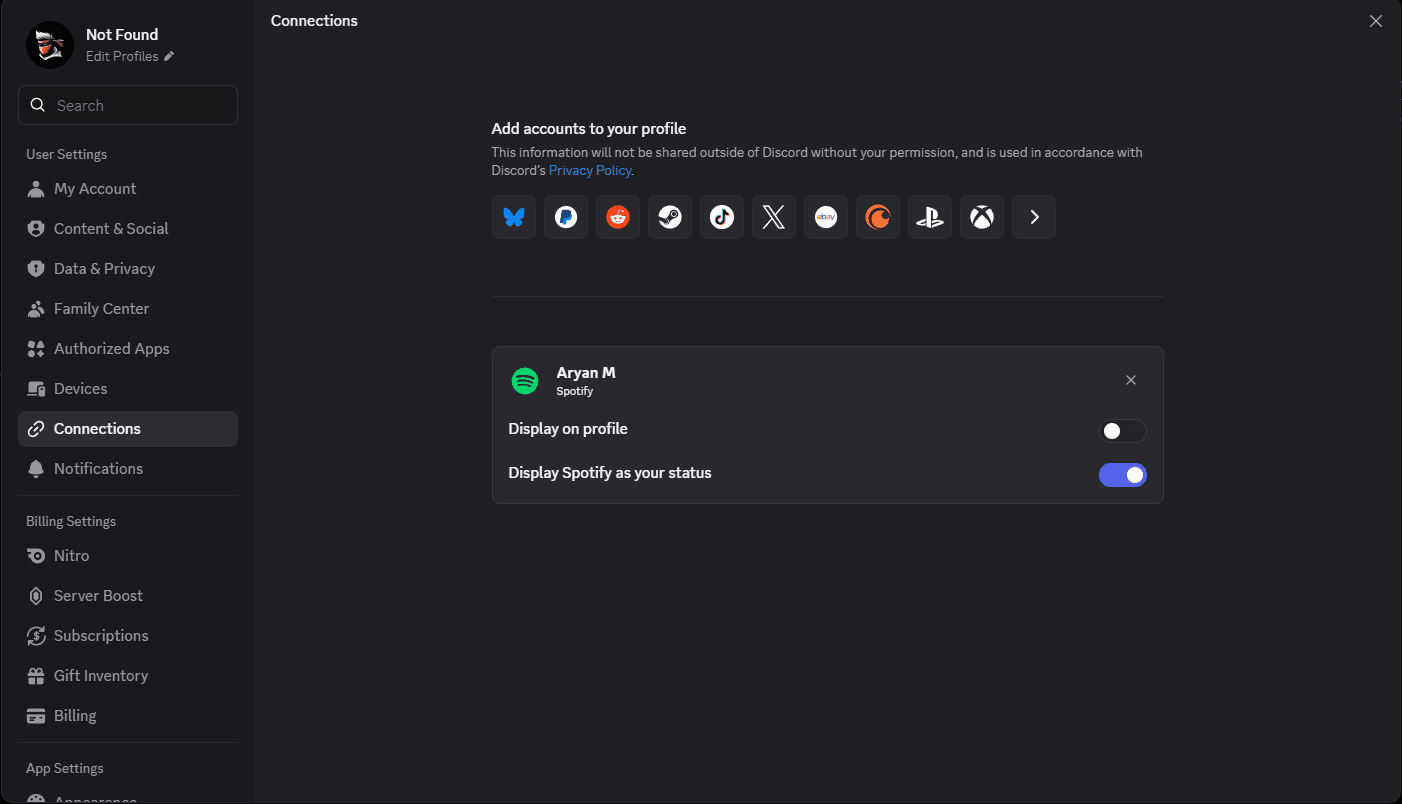
Go to the Diva Music Profile Page
Once You see something like in below picture then,
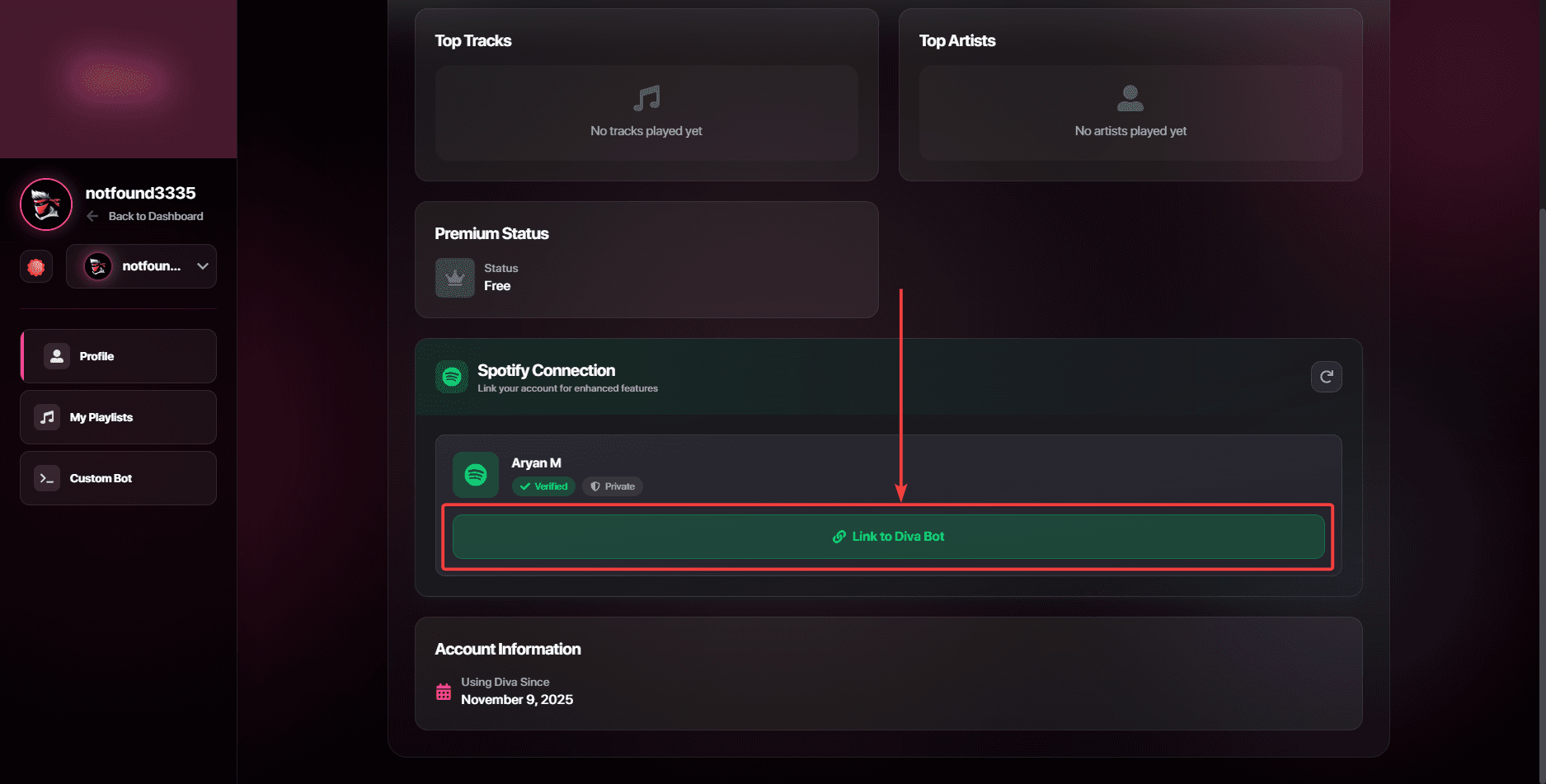
Open the Diva Music Profile Dashboard in your browser. This is where you will link your connected Spotify account to Diva Music.
Connect Spotify on the Profile Page
On the profile page, locate the Spotify section and click the Connect button to link your Spotify account.
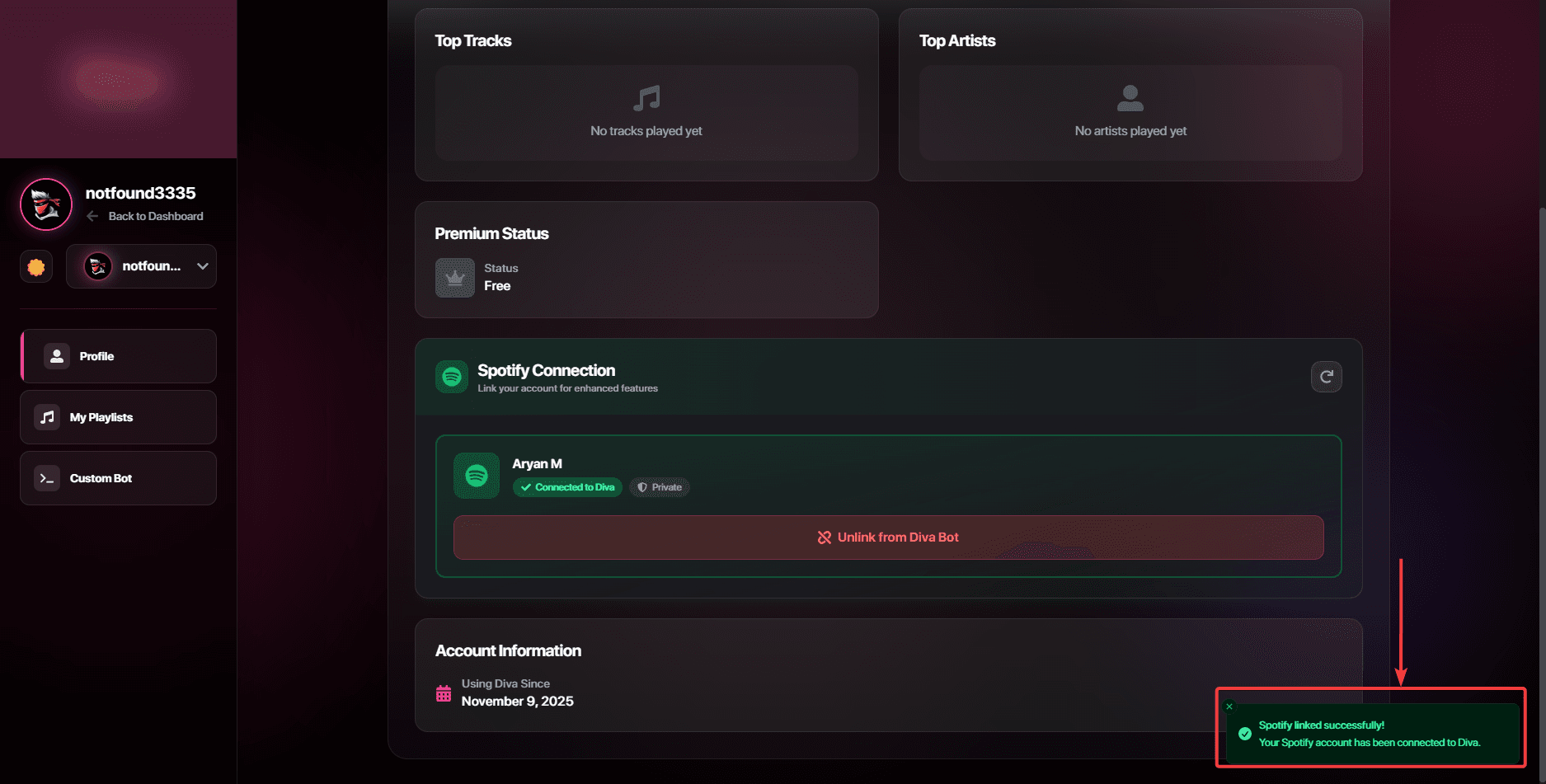
Connection Successful
A success dialog will appear confirming that your Spotify account is now linked to Diva Music. You're all set!
What's next?
You can now directly play your public Spotify playlists into Diva Music without any hassle. Run /spotify in Discord and click the "View Playlists" button to get started.