Custom Bot Setup
A step-by-step guide to creating your own Discord bot application and connecting it to Diva's servers.
Run Diva Bot under your own branding by connecting a custom Discord bot application to Diva's infrastructure.
Requirements
- You must have the Diva Diamond Plan
- Premium must be activated on your server - run
/premium activate
Setup Steps
Create a Discord Application
Go to the Discord Developer Portal and sign in.
Click New Application in the top-right corner. A popup will ask you to name your application.
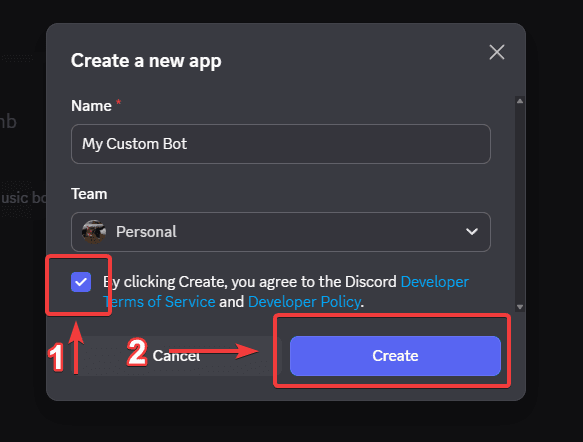
- Enter a name for your bot (e.g.
"My Music Bot") - Accept Discord's Terms of Service and Developer Policy
- Click Create
You can always rename or re-brand your bot later - don't stress about the name right now.
Enable Required Intents
In the left sidebar, click Bot. Scroll down to Privileged Gateway Intents and enable all three toggles:
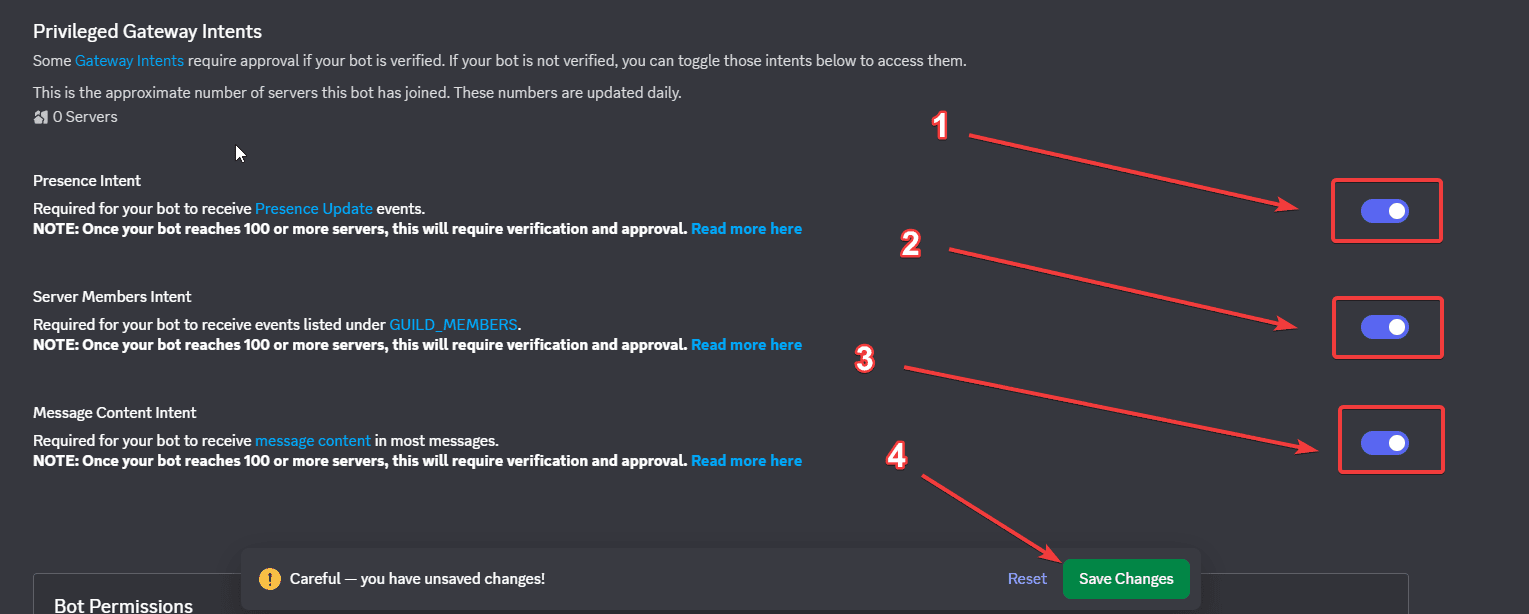
- Presence Intent
- Server Members Intent
- Message Content Intent
- Click Save Changes
Don't skip this step
Without these intents enabled, the bot will not function correctly. Make sure all three are toggled on before continuing.
Get Your Bot Token
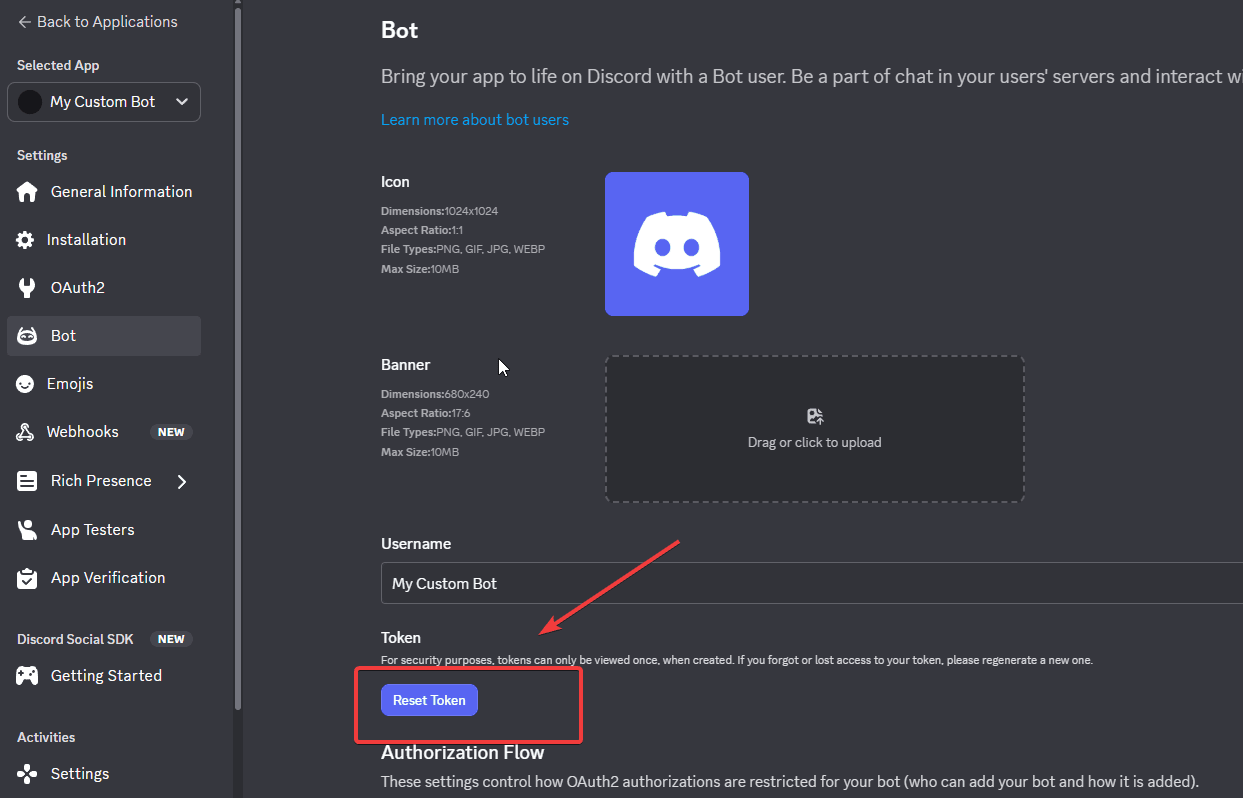
Still on the Bot page, scroll up to the Token section.
Click Reset Token to generate a new token.
After confirming, your token will appear. Copy it immediately.
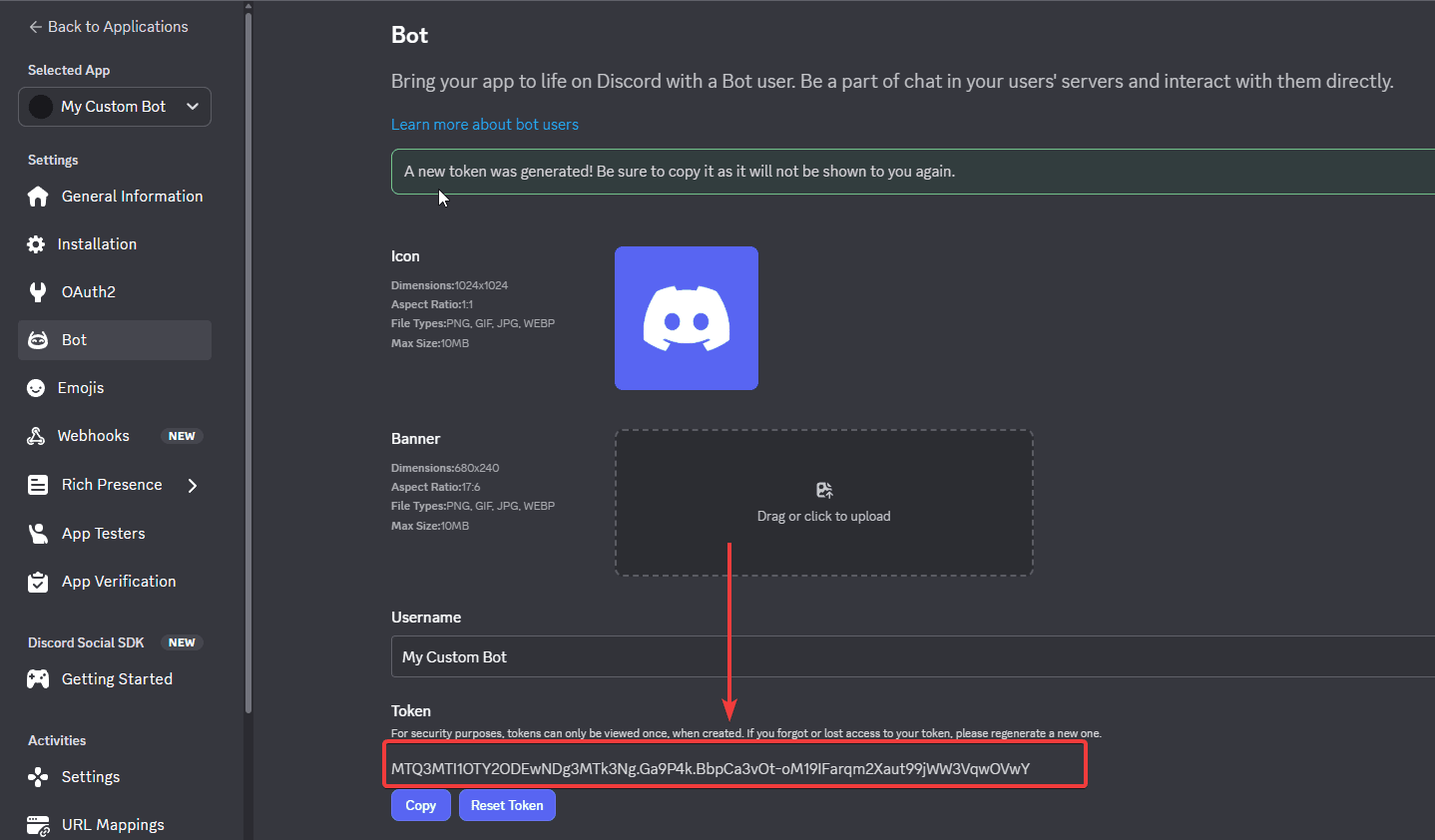
Keep Your Token Secret
Your bot token is like a password - never share it with anyone. If you accidentally expose it, return here and click Reset Token to invalidate the old one immediately.
Configure on the Diva Dashboard
Open the Custom Bot Dashboard and click Set Token.
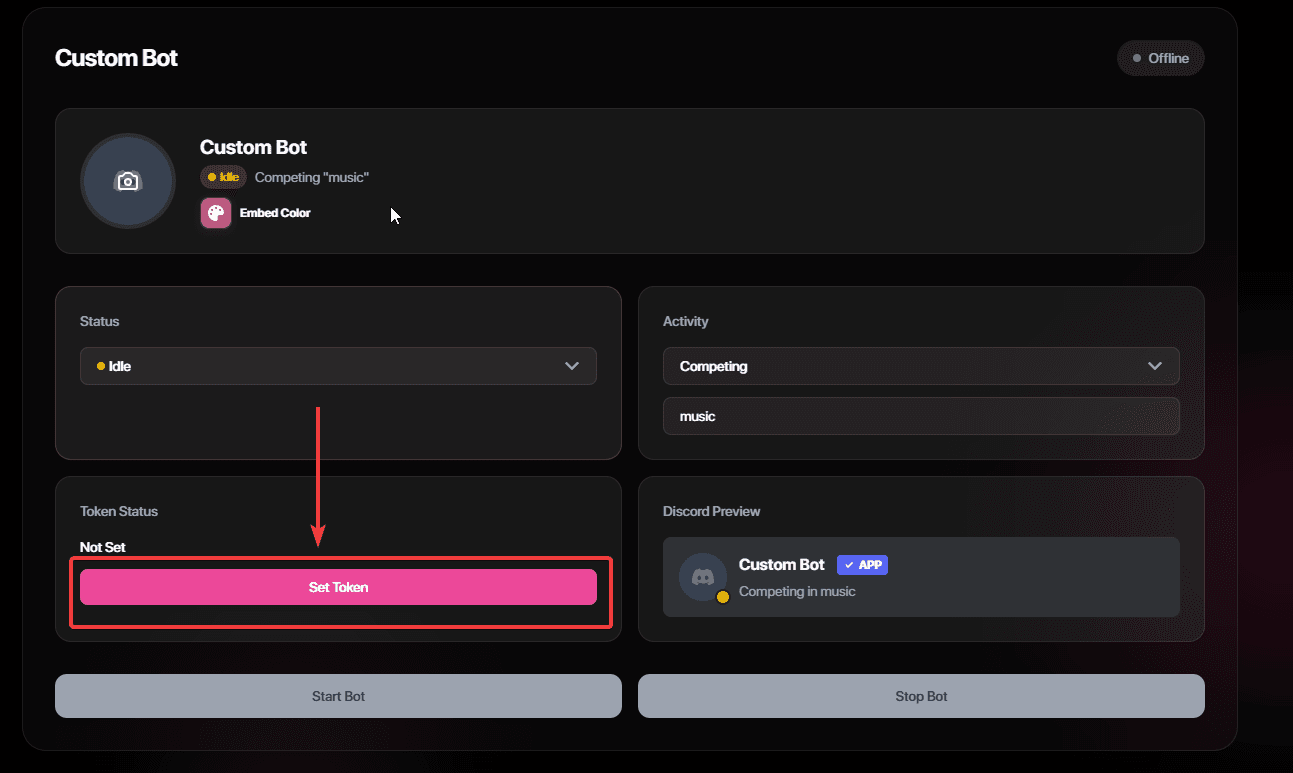
A popup will appear - paste your token and click Save Token.
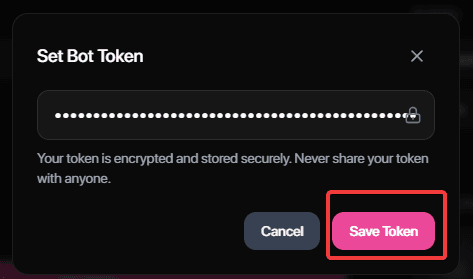
Your token is encrypted and stored securely on Diva's servers.
Start Your Bot
Once the token is saved, click Start Bot to bring your custom bot online.
After a few seconds the status will change to Online. Then click Add to your server to invite it.
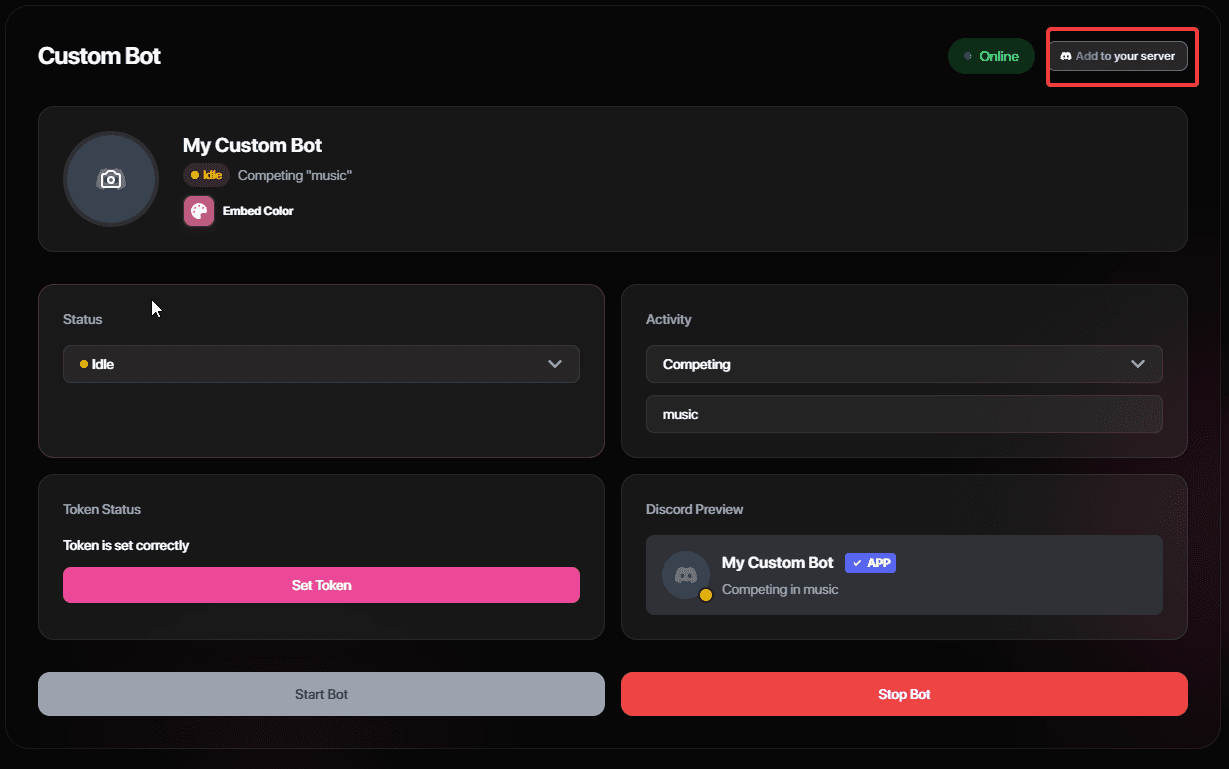
Your custom bot is now live! 🎉
Customization Options
After setup, you can fully customize your bot from the dashboard:
Avatar
Hover over the avatar on the dashboard to upload a custom image.
Status
Set your bot's presence: Online, Idle, DND, or Mobile.
Activity
Choose Playing, Listening, Watching, or Competing.
Activity Text
Set a custom status message shown under the bot's name.
Embed Color
Customize the accent color of all bot embeds.
You can also change the bot username and avatar directly in the Discord Developer Portal under your application's Bot settings.
Alternative: Using Premium Bots
With your Diamond plan, you can invite our Premium Bots and customize them per-server using /customprofile - no token setup required.
What /customprofile Lets You Set
After inviting a Premium Bot, run /customprofile in your server to customize it:
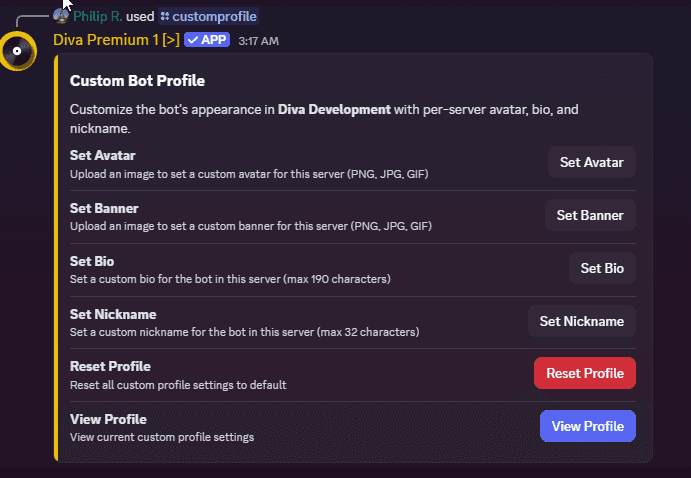
| Option | Description |
|---|---|
| Set Avatar | Upload a custom avatar (PNG, JPG, GIF) |
| Set Banner | Upload a custom banner (PNG, JPG, GIF) |
| Set Bio | Custom bio text (max 190 characters) |
| Set Nickname | Custom nickname in this server (max 32 characters) |
| Reset Profile | Reset all custom settings to default |
| View Profile | View current custom profile settings |